Common Methods to Take Screenshots on Windows
Using the Print Screen (PrtScn)Key
Press PrtScn: This takes a screenshot of your entire screen and places it on the clipboard. You’ll need to paste it into something like Paint or Word.
Press Alt + PrtScn: This grabs only the window you’re using and copies it to the clipboard.
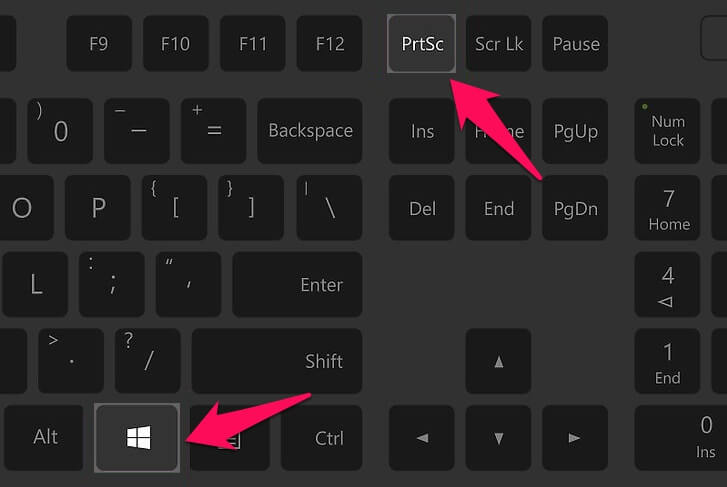
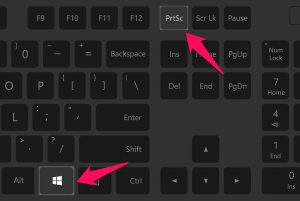
Press Windows Key + PrtScn: This captures your full screen and saves it automatically in the Pictures > Screenshots folder.
Using Snip & Sketch (Windows 10/11)
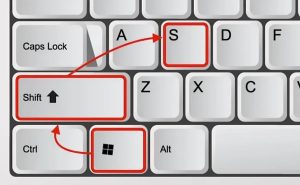
Press Windows Key + Shift + S: This brings up a toolbar with options for capturing shapes or windows. The screenshot is copied to your clipboard, and a notification lets you edit or save it.
Using Snipping Tool (Pre-Windows 10 / Legacy)
Search for Snipping Tool from the Start menu and open it. You can choose different snip types, then annotate, save, or email it directly.
Using Xbox Game Bar
Press Windows Key + G to open the overlay. You can click the camera icon or use Windows Key + Alt + PrtScn to take a shot. It’s saved under Videos > Captures, useful for games or full-screen apps.
These methods give you control over how much of the screen to capture. Whether it’s for quick sharing or detailed work, there’s an option that fits.
For convenience and speed, Windows Key + Shift + S is one of the easiest ways to grab what you need.
Most screenshots either save to default folders or can be pasted directly into apps for editing or sharing.