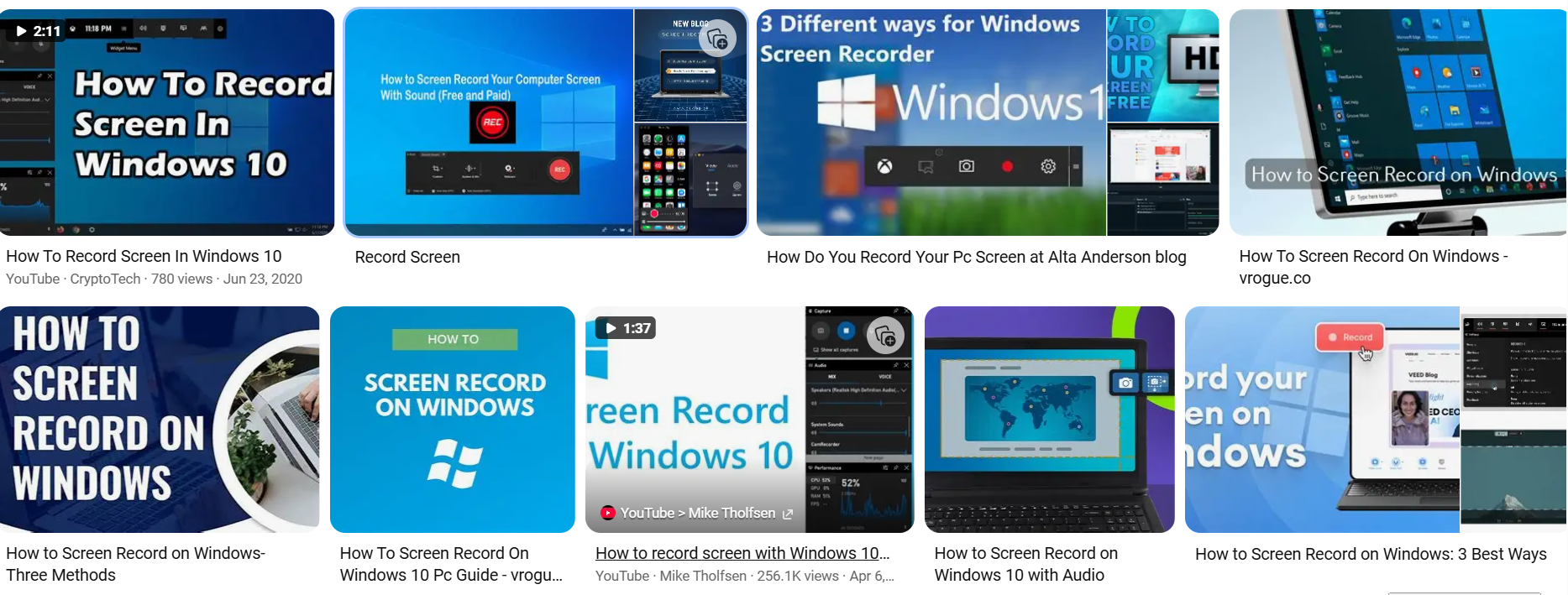
Activate Game Bar: Press Windows + G to bring up the overlay.
Start Recording: Use the Capture widget by clicking the camera icon, then hit Record, or press Windows + Alt + R.
Record Audio: Turn the microphone icon on or off depending on whether you want to include voice.
Stop Recording: Either press Windows + Alt + R again or select Stop from the recording controls.
Locate Recordings: Finished videos are stored in the Videos > Captures folder as MP4 files.
The Game Bar is simple and built-in, though it doesn’t support recording your entire desktop or File Explorer.
Open Snipping Tool: Search for it in the Start menu and launch it.
Switch to Video Mode: Click the camera icon to enable screen recording.
Select Area to Record: Click New and highlight the section of the screen you want.
Configure Audio: Adjust microphone and system sound options based on what you want to include.
Start and Stop: Begin with Start, then stop recording once you’re finished.
Save Video: Review the recording and save it as an MP4 file.
Snipping Tool is easy to use and allows basic editing but only works on Windows 11 version 22H2 or later.
Launch Clipchamp: Open it via the Start menu or Microsoft Store.
Create New Video: Choose Create a new video, then click Record & create.
Choose Recording Type: Pick whether to record your screen, your webcam, or both.
Start Recording: Select a screen area, toggle audio settings, and click Share to begin.
Stop and Save: When done, click Stop sharing. Recordings are saved to your Downloads folder.
Clipchamp supports webcam overlays and audio capture, though advanced features may require a Microsoft 365 subscription.
-
Using Third-Party Software (e.g., OBS Studio)
Download and Install OBS Studio: A free, open-source program for advanced screen recording and streaming.
Set Up Display Capture: Add a Display Capture source to define what’s being recorded.
Configure Audio: Set up system and microphone audio depending on your needs.
Start and Stop Recording: Use the Start Recording button, then click Stop Recording when you’re done.
File Location: Recordings are saved to the Videos folder and can be exported in formats like MP4 or MKV.
OBS offers powerful tools and flexibility but may take time to learn for new users.
Quick Tips
- Ensure your Windows version supports the tool you plan to use. Xbox Game Bar works on both Windows 10 and 11, while the Snipping Tool recorder needs Windows 11 22H2 or newer.
- Adjust audio settings depending on whether you want to include voice, system sound, or both.
- Check available disk space, since screen recordings—especially in high resolution—can take up significant storage.
- Use OBS Studio or Clipchamp if you need to record your full desktop or switch between multiple windows.
- Verify save locations, as most apps save recordings automatically but in different folders.