
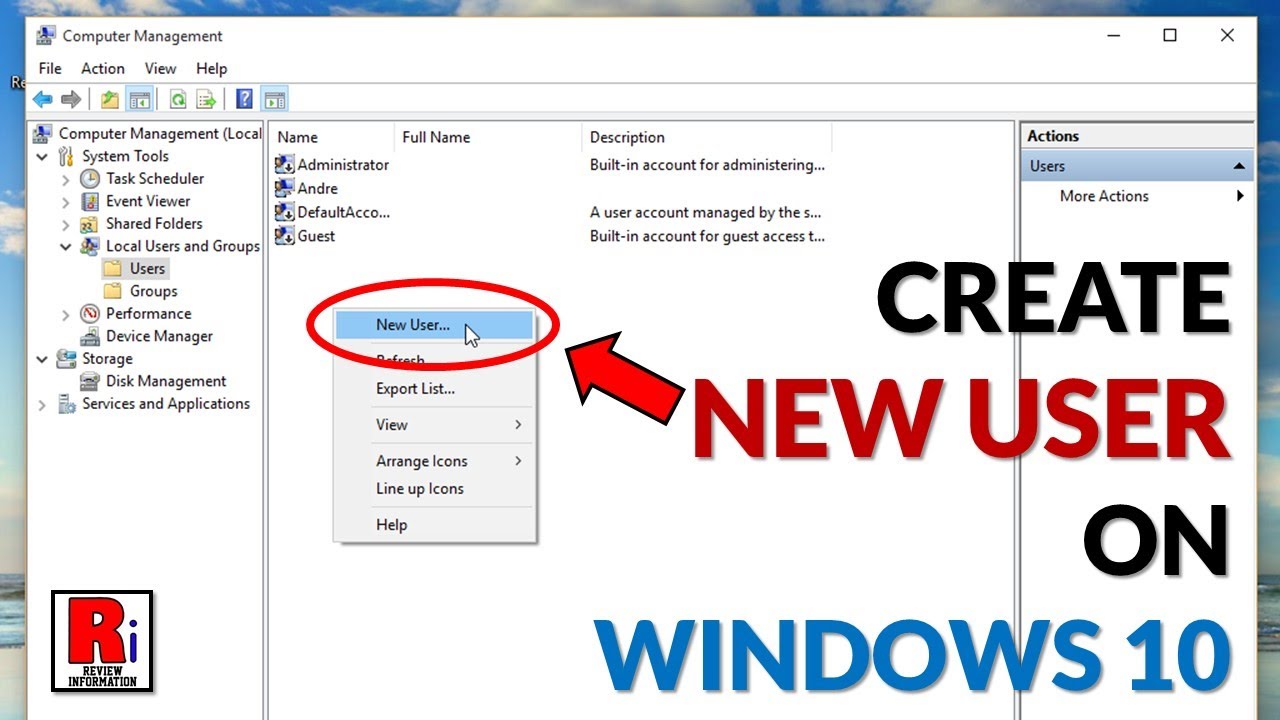
Simple steps to add a new user account on your computer. Easy guide for beginners to create user accounts safely.
Identify the Steps of Adding New User Account in Your Computer
Have you ever shared your computer with someone and wished they had their own space? No mixed files, no “who deleted my folder?”, and no worries about your settings being changed. That’s why it’s useful to know the steps of adding new user account in your computer.
The best part? It’s actually super easy — even if you’re new to computers. Let’s walk through it together in simple, friendly steps.
Why Do You Need a New User Account?
Before we talk about the steps, here’s a quick truth: giving everyone their own account makes life easier.
A new user account helps you:
- Keep your private files safe
- Stop others from messing up your settings
- Give kids or guests a simple space to use
- Keep the whole computer clean and organized
Think of it like giving each person their own little room inside your computer.
Steps of Adding New User Account in Your Computer
Here comes the part you’re looking for — and trust me, it’s not scary at all.
- Open Your Settings
Start by clicking the Start button (Windows logo).
Then choose Settings — it looks like a small gear.
This is the home of everything you can change on your computer.
- Go to “Accounts”
Inside Settings, find the option that says Accounts.
Click it.
This is where all things related to users, passwords, and sign-ins live.
- Click “Family & Other Users”
On the left menu, choose Family & other users.
Here, you’ll see all the people who already have accounts on the computer.
To add someone new, keep going…
- Select “Add Someone Else to This PC”
Look for a button that says Add someone else to this PC.
Click it.
A small window will pop up — don’t stress, it’s just asking how you want to add the new person.
- Choose Your Method
You have two ways to add someone:
- With a Microsoft email
- Without email (this is called a local account)
If the person doesn’t have an email, click:
I don’t have this person’s sign-in information → Add a user without a Microsoft account
- Create Their Username and Password
Now type the new person’s name.
Then add a password and choose some security questions.
This is the heart of the steps of adding new user account in your computer — you’re giving them their own login.
Make sure the password is strong but still easy to remember.
- Click “Next” to Finish
Hit Next, and you’re done!
Just like that, the new user account is created.
Next time you turn on your computer, you’ll see both accounts on the login screen.
Extra Tips to Make Things Easy
- Don’t share your admin account
- Use good passwords
- Only give admin access to people you trust
- Make sure kids use a standard account for safety
Simple habits like these keep your computer running smoothly.
Final Thoughts
Now you know the steps of adding new user account in your computer, and honestly, you did great. It’s one of those tasks that looks complicated until someone shows you how simple it really is.
Whether it’s for family, guests, students, or coworkers, you can now add accounts with confidence — and keep your computer neat, safe, and organized.
Real, Safe External Links
Here are reliable sources to support your article:
- Microsoft – Create a Local User Account
- Windows – Account Management Help
- Digital Citizen – How to Add a New User in Windows

What Is Operating System and Features of Operating System? 
Identify the Steps of Adding New User Account in Your Computer



















Have you ever shared your computer with someone and wished they had their own space? No mixed files, no “who deleted my folder?”, and no worries about your settings being changed. That’s why it’s useful to know the steps of adding new user account in your computer.inezabusiness.com
https://shorturl.fm/iCgfr
https://shorturl.fm/lkw7G
https://shorturl.fm/U4uaq
https://shorturl.fm/4QktO
https://shorturl.fm/xSFfT