
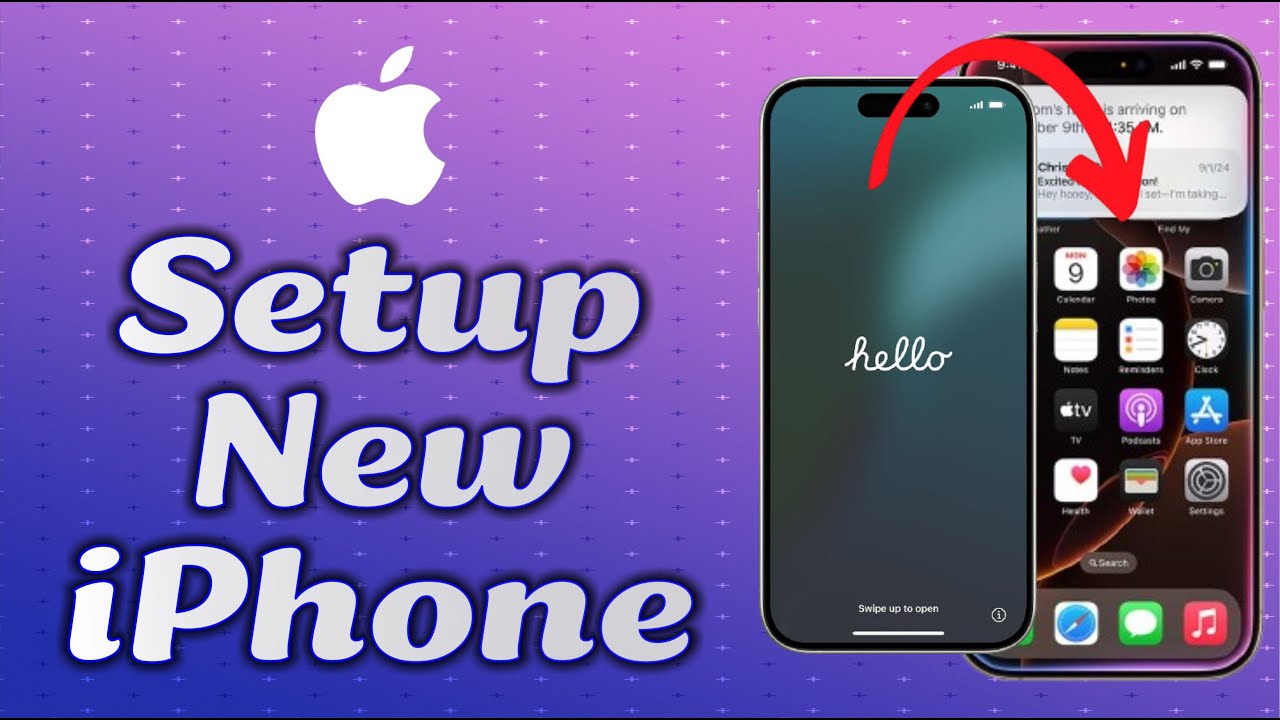
How to Set Up an iPhone (Detailed Explanation)
How to Set Up an iPhone (Detailed Explanation):Setting up an iPhone involves preparing the device so that it can be used properly. This includes connecting to the internet, creating or logging into an Apple ID, and choosing how you want to use the phone.
1. Turn On the iPhone
Press and hold the button located on the right-hand side of the iPhone. Keep holding it until you see the Apple logo appear in the center of the screen. This means the device is starting up.
2. Choose Your Language and Region
Once the phone turns on, a greeting screen will appear in different languages. Swipe up from the bottom of the screen. A list of languages will be shown. Tap the one you prefer to use. After that, you will be asked to select your country or region. This choice affects how dates, times, and phone numbers appear on the device.
3. Decide How You Want to Set Up the iPhone
If you already own another iPhone and it is turned on, the new iPhone may detect it nearby. In that case, a screen will appear asking if you want to use your current iPhone to set up the new one. This is called Quick Start. If you want to use this feature, follow the instructions on both phones.
If you do not have another iPhone or you prefer to do the setup manually, tap the option that says “Set Up Manually.”
4. Connect to Wi-Fi
The iPhone will ask you to connect to a wireless internet network (Wi-Fi). A list of available networks will appear. Tap on the name of your Wi-Fi network, then enter the password when prompted. This step is required so that the phone can communicate with Apple’s servers and continue the setup process.
5. Set Up Face ID or Touch ID
Depending on your model of iPhone, you will be given the option to set up Face ID or Touch ID. Face ID uses facial recognition to unlock your phone. Touch ID uses your fingerprint. Follow the instructions on the screen to scan your face or fingerprint. If you prefer not to use these features now, you can choose to set them up later.
6. Create a Passcode
You will be asked to create a passcode. This is a number you must enter to unlock your phone or change important settings. The standard option is a six-digit code. If you want a different type of code (such as a four-digit code or a password with letters), tap “Passcode Options” and choose the one you prefer.
7. Choose How to Transfer or Restore Data
The iPhone will now ask how you want to bring data onto this device. You will be given several choices:
-
If you have backed up an old iPhone to iCloud, you can restore your apps, settings, and data from that backup.
-
If you have backed up your iPhone using a computer, you can connect it and restore from that backup.
-
If you have another iPhone or an Android phone, you can transfer data directly from it.
-
If you do not want to transfer any data, you can set the iPhone up as new.
Choose the method that suits you best and follow the steps shown on the screen.
8. Sign In With an Apple ID
An Apple ID is the account you use to access Apple services such as the App Store, iCloud, and iMessage. Enter your Apple ID email and password when asked. If you do not have an Apple ID, tap the option to create a new one and follow the instructions.
If you have forgotten your Apple ID password, choose the “Forgot password?” option to reset it.
9. Set Preferences for Siri, Location, and Other Features
You will be asked if you want to use certain features:
-
Siri is a voice assistant that can help you perform tasks using voice commands.
-
Location Services allow apps to know your location so they can provide relevant information (like weather or maps).
-
You can also turn on Screen Time, which shows how much time you spend on your phone and lets you set limits.
You can enable or disable these features during setup, and change your choices later in the settings app.
10. Choose Your Display Options
You will see two options for how your screen will look. The Light mode has a white background, and the Dark mode has a black background, which some people find easier on the eyes. Select the one you prefer.
You can also choose how large or small text and icons should appear on the screen. Choose the option that is most comfortable for your vision.
11. Finish Setup and Begin Using the iPhone
After all steps are completed, you will see a screen that says “Welcome to iPhone.” Swipe up from the bottom to begin using your phone.
Final Notes:
-
If you skipped any steps, you can complete them later by opening the Settings app.
-
To download apps, update software, or back up your phone, your Apple ID and internet connection are required.

How To Transfer & Setup Everything from Your Old IPhone to new Iphone …




















pull up
nice
Conglaturations
Conglaturation
Enjoy my developers
NI NZIZA CYANE KAND IRADUFASHA
Stay turned on
We love you.
Keep Shinning
Stay turned on
ENJOY MY DEVELOPER
GOD BLESS YOU
GOOD NIGHT MY AIME
VERY NICE
congratiration